The parameters that impact the number of connection to a single database are:
- "-n" Parameter: Sets the maximum numbers of connections to the database, that counts all, remote and local connections.
- "-Mi" Parameter: Sets the minimum number of remote connections that should to be connected to a server process before broker spawns a new server if -Mn has not yet being reached.
- "-Mn" Parameter: Sets the maximum number of servers that can be started.
- (In Progress Explorer the above reference is the same as the Maximum servers within the Configuration properties)
- "-Ma" Parameter: Sets the maximum number of remote connections that a server can have.
- "-Mpb" Parameter: Sets the maximum number of servers that a particular broker can spawn.
- (In Progress Explorer the above reference is the same as the number of servers in the servergroup properties)
When running, the database will increase the count of sessions (-n value) for:
Each process connected to shared memory:
- 1 per remote server
- 1 per auxiliary process (page writer -- biw / apw -- and watchdog)
- 1 per self-service client
- 1 for the broker processes (1 for the main broker + 1 per additional broker)
- 1 per online backup (only 1 is expected but should be factored into -n)
- 1 per promon session
Each remote client connected to a server.
To set -Ma, -Mn and -n startup parameters appropriately define:
- The maximum number of concurrent remote users.
- The maximum number of concurrent local users (self service clients).
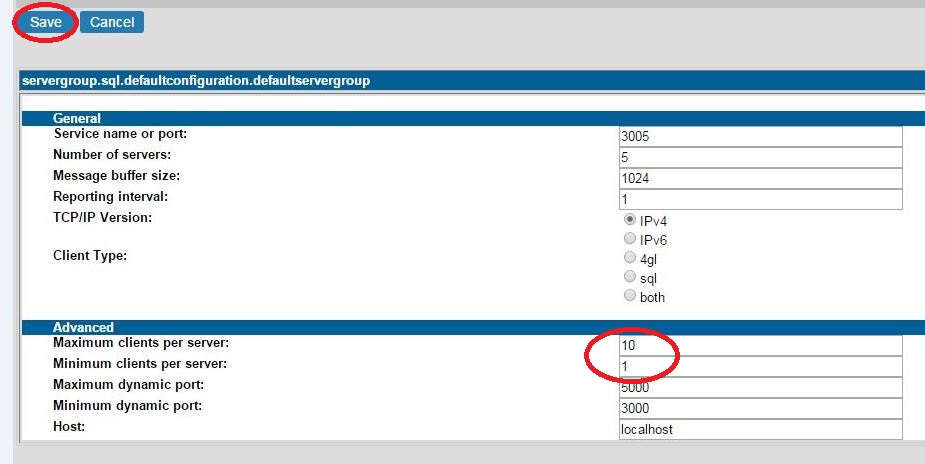
- Set -Ma as high as possible but lower than 11 (increasing above 10 clients per server may degrade performance, decreasing it under 5 will require more server processes creating unnecessary overhead).
The default value for -Ma is 5 and its maximum value is 2048, this value represents the maximum number of queued client processes. If the application requires long and heavy queries and there is performance degradation, -Ma may need to be decreased.
- Calculate -Mn (the number of required servers) by dividing the maximum remote users by the value of -Ma, plus 1 for each extra secondary broker if any.
- The product value(-Ma) * value(-Mn) must be equal to the maximum number of remote users.
- The formula for -n is: value(-n) = (maximum # of remote users) + (maximum # of local users) + 2.
Where the value "2" in the formula above will be used by proMon and proShut utilities connect to the DB.
- Keep the following relation:
value(-Ma) * value (-Mn) < value(-n)
Example 1:
Remote users: 32
Local users: 15
Value(-Ma)=8
Value(-Mn)=(Remote users)/Value(-Ma)= 32/8 = 4 (plus 1 for each extra secondary broker if any)
Set -Mn 4, -Ma 8, -n 49
Example 2:
In this example assume that 40 users are needed and 8 extra connections are given for promon and other background processes like the Watchdog, the Asynchronous Page Writers, etc.
proserve sports2000 -S prosv00 -Mi 3 -Ma 4 -Mn 13 -n 60
The sports2000 should be replaced with the dbname, prosv00 replaced with the correct port number or service name for remote connections. When using multiple brokers, the count of servers (-Mn) can be split across brokers using -Mpb:
proserve sports2000 -S prosv00 -n 60 -Mn 13 -Mi 4 -Mpb 6
proserve sports2000 -m3 -S prosv01 -Mi 4 -Mpb 6
The "-Mpb" setting of 6 for each broker allows each port to spawn a maximum of 6 servers each. -Mn is set to the total number of remote servers that can be spawned [6 for the primary broker + 6 for the secondary broker + 1 for the secondary login broker since each secondary login is counted as a server = 13].
For further information refer to Article How to set up a secondary login broker for SQL-92 connections for Progress/OpenEdge database?
Example 3:
The following example shows how to edit -Ma, -Mn and -n using OpenEdge Management and OpenEdge Explorer.
1.Open OpenEdge Explorer or OpenEdge Management.
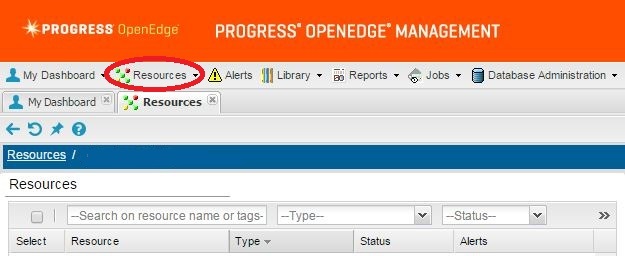
2.Select the resources tab.
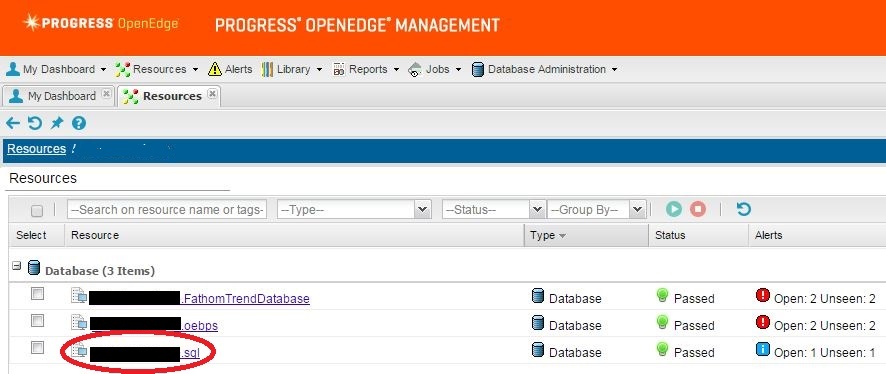
3.Select the database that needs to be edited
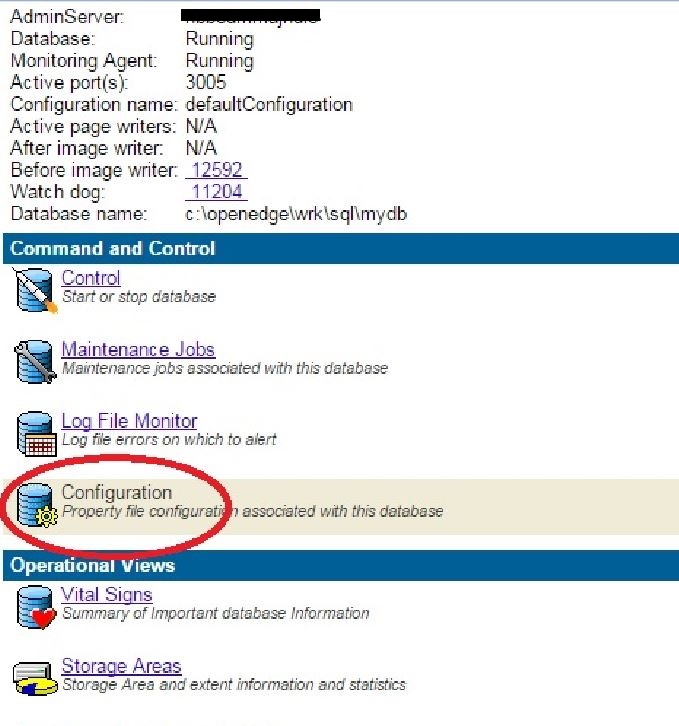
4. Select Configuration
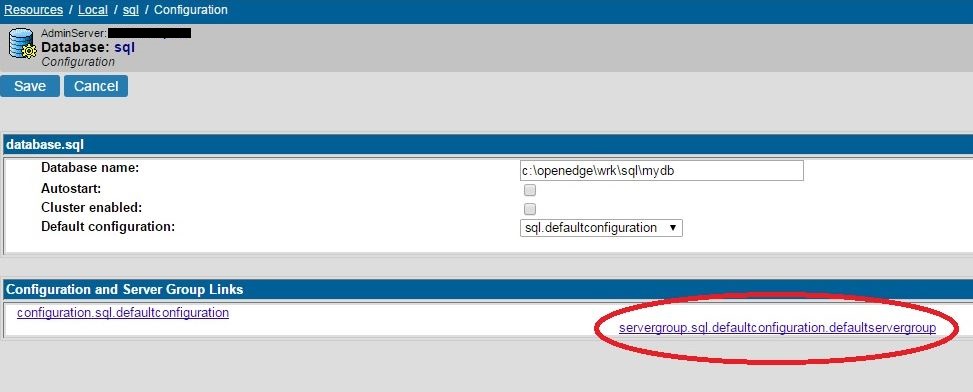
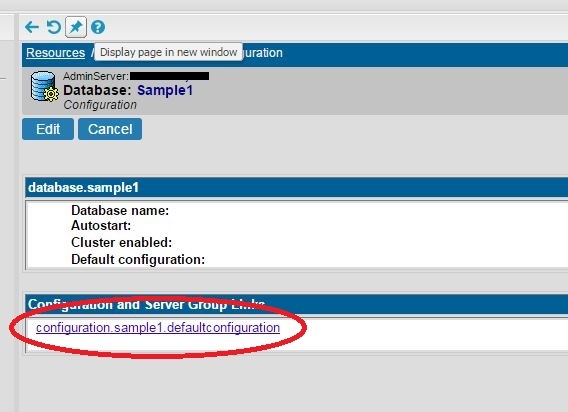
5. Select configuration.<DBNAME>.defaultconfiguration
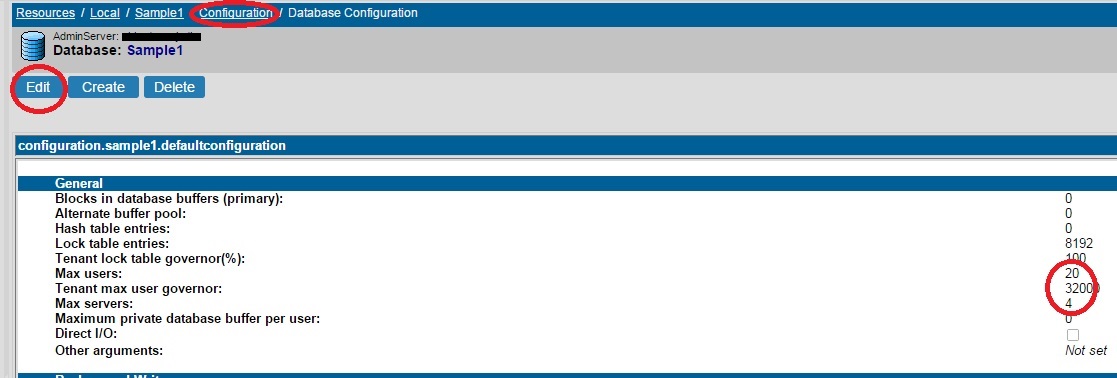
6. Select Edit.
Edit Max Users and Max Servers to the required number.
Select Save.
Select Configuration to return to the Configuration Page.
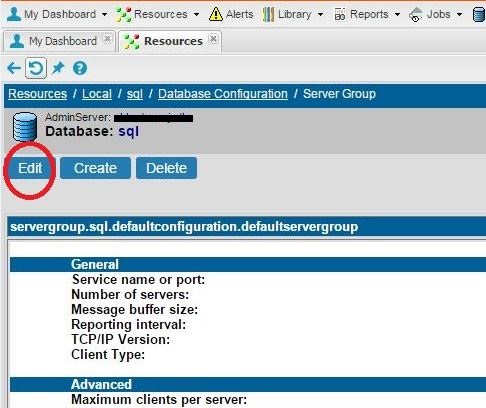
7. Select servergroup.<DBNAME>.defaultconfiguration.defaultservergroup
8. Select Edit
9. Edit Maximum clients per server and Minimum clients per server to the required amount and select save.
10. For multiple broker configurations repeat steps 5 through 9, as described in Article:


