
HAEA Network Team (Customer) asked a question.
How to monitor systemuptime KPI in WUG 22.0.2 version?
I tried using custom monitor through SNMP Performance Monitor by giving the Counter OID value . After executing it is showing large values instead of 298 days. attached screenshots for your reference, kindly help on it.
Regards
Kalyan
I managed to find the answer by going to a few sites I found using Google. (Note the below links are 3rd party sites and not a part of Progress Software and are outside of Progress' control so use their information cautiously).
hrSystemUptime is shown in time ticks that are recorded 1/100th of second (or Centiseconds).
https://kb.paessler.com/en/topic/61249-why-does-the-snmp-system-uptime-sensor-report-wrong-values
2581535232 Centiseconds = 298.7888 Days
https://www.kylesconverter.com/time/centiseconds-to-days
Thanks for the quick response , I appreciate it .is there any way to convert centiseconds to days by default in WUG or any option available
Unfortunately not. For a Custom SNMP Monitor like that WUG just pulls and displays the raw data sent by the device.
Thanks for the update James.
@HAEA Network Team (Customer) , maybe a very simple Active Script can help. I am providing detailed instructions so that beginners can also benefit.
Go to Settings -> Libraries -> Monitors
Add (+) -> Performance Monitor -> Active Script Performance Monitor -> Select
Give a name to the monitor
Go to Reference Variables -> Add (+)
Give the name "A"
Insert Counter and Instance
In the script text, insert the following lines in bold:
=================================
'Get the value of the reference variable A
A = Context.GetReferenceVariable("A")
'Get the value in number of days
A = A / 8640000
'Set the performance monitor value to graph
Context.SetValue A
=================================
Assign the monitor to the device. Adjust the polling interval properly (1 minute may be appropriate for testing).
In Analyze -> Dashboards -> Home Dashboard, select the dashboard where you want to add the graph or create a new dashboard.
Select "Add Reports" icon on the top right -> Performance -> Custom Performance Monitor
Add the report to the dashboard.
To see a graph, select "Filter By Device" on the left of the device name in the table and change from "Last Polled" to "Today".
If you prefer to show the number of seconds, just use "A = A / 100".
For other use cases that require getting multiple variables and doing some math, just add other variables (B, C, D...) in the same monitor/script, each variable for a specific OID, and do the math like "A = A + B + C".
Hope this helps.
Thanks @Jason Alberino (Progress Software Company) for teaching me this some time ago. :-)
I tried same but receiving the following error. kindly help. attached artifact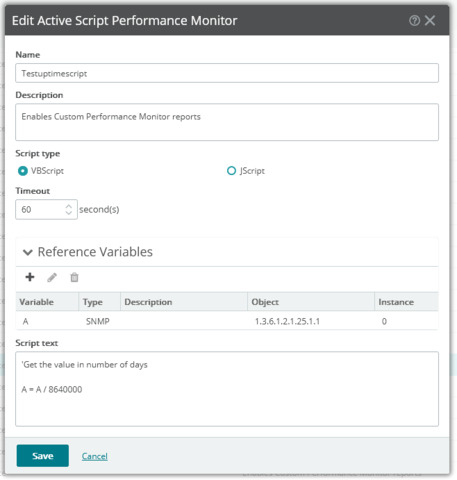

Hello.
The script must have all lines in bold below:
=================================
'Get the value of the reference variable A
A = Context.GetReferenceVariable("A")
'Get the value in number of days
A = A / 8640000
'Set the performance monitor value to graph
Context.SetValue A
=================================
Kindest regards,
Ricardo
sure Ricardo, let me try this and update
Thanks Ricardo, its working
Perfect! I'm glad it is working now. 👍 😀