Review the PDF’s attached to this article (especially OEDK Installation Files). It shows the process of creating a customized license file for installing OEDK and follow the below step by step instructions.
The steps below describe the process of upgrading from OE 11.6 to 11.7, but also applies to other releases.
Step 1:
In order to be able to add OpenEdge 11.7 to the available software on the Electronic Software Download Center, and to be able to activate the software using serial numbers and control codes, existing subscription needs to be updated. This upgrade will establish a new 12-month subscription to the OEDK Edition, so the expiry date of the current subscription will be extended. Go online, to the OEDK Subscription Administration System, find the subscription, click on the UPGRADE button and choose Release 11.7.
Next steps:
- User Guide - OEDK Installation File Creation: The Control Codes for the OEDK Subscriptions are not located in the same place as the other OpenEdge or PSDN products Codes are/were. Please see the screenshots below, along with the attached User Guide to help accessing the Control Codes.
- OEDK 11.6 Welcome Manual: It is also possible to download OEDK 11.7 via ESD
- How to get started with OpenEdge Developers Kit : Installing OEDK ( http://documentation.progress.com/output/oedk/index.html#page/oedk/installing-oedk.html )
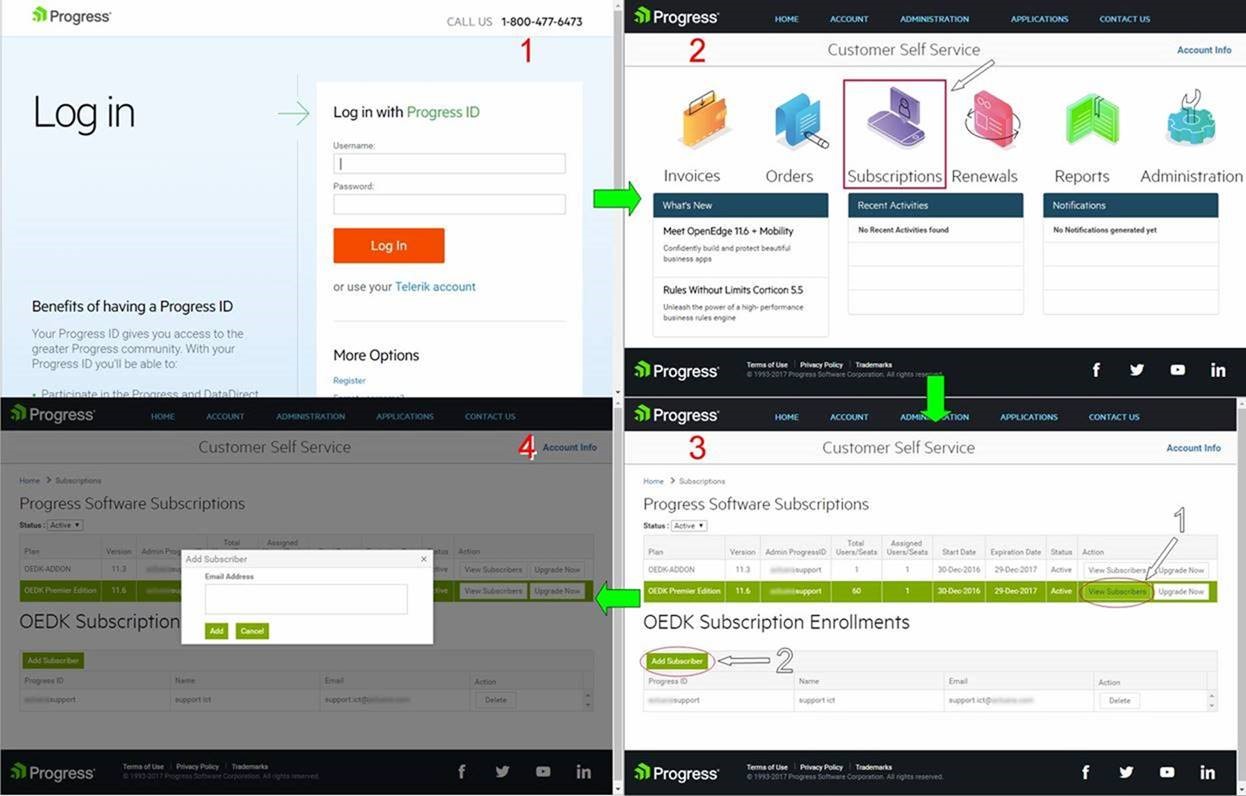
It can occur that an ESD-account has no link to the ‘activation files’. In that case the account has to be added as a ‘Subscriber’ to the OEDK subscription via the CSS (Customer Self Service Portal).
ESD (Electronic Software Download) - https://secure.progress.com/esd
CSS (Customer Self Service portal) - https://secure.progress.com/css
Add a Subscriber in CSS as follows:
It can take up to an hour for our systems to be updated and before the download link is visible in ESD.


