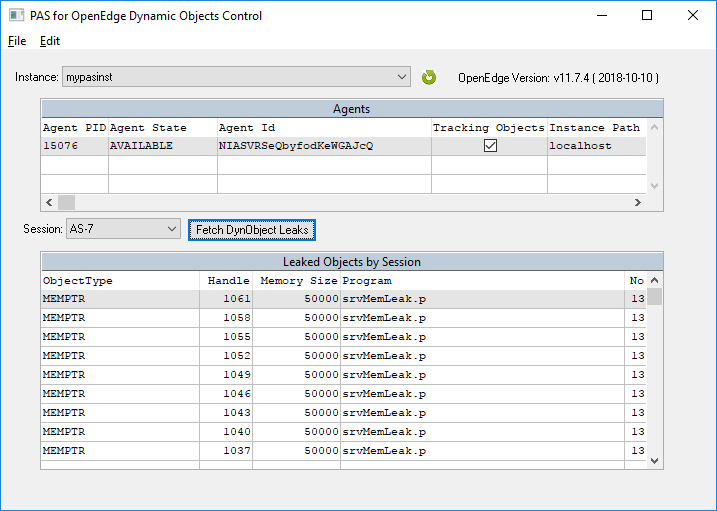
The oemanager service:
As a prerequisite to using this tool, you must enable the oemanager service in PASOE. This does not get automatically installed in a production instance.
Follow the instructions in the article below to enable this service.
How to enable Swagger for PASOE instance
To start the tool:
- Ensure that the appropriate version of the OpenEdge.Net.pl file is in the PROPATH.
- This tool uses the ABLObjects REST API provided by swagger through the OE Manager. Instructions for setting this up before using this tool are available in the article here: How to enable Swagger for PASOE instance .
- Download the attached pasDynObjectViewer.zip
- Execute: prowin32.exe -p pasDynObjectViewer.w
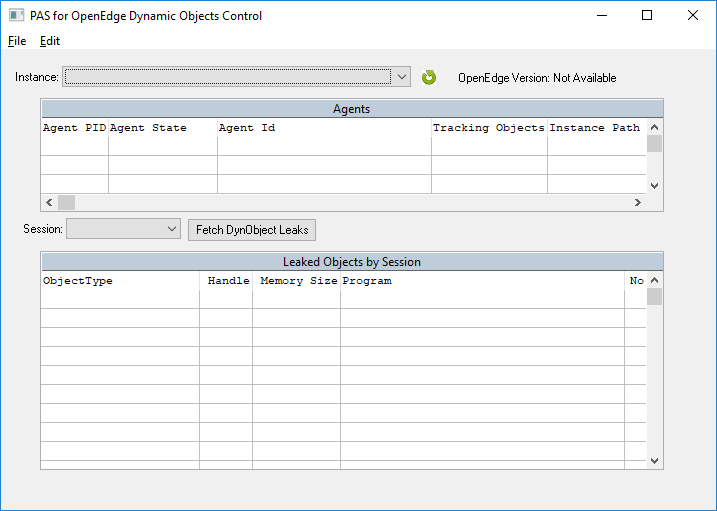
Setting up Instances to connect to:By default, the tool does NOT load local instances into its instance registry. This is because many don't register their instances and it can generally be a waste of time waiting for the command line stuff in the tool to execute, grabbing information up front for each instance registered.
If the instance you're investigating is local to the machine where you're running the viewer, select Edit >> Load Local Instances, and the interface should load all registered instances. Once this step is done you can skip to "Interrogating an instance".
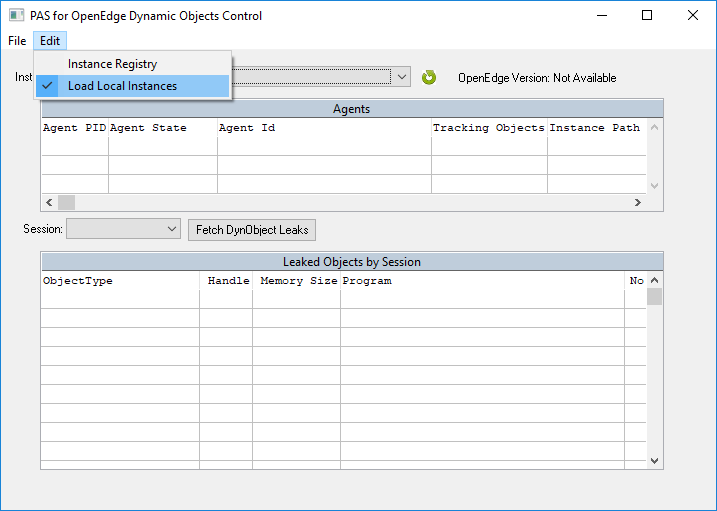
If your instance is not local and you need to connect to it, you will need to add the connection information to the Instance Registry.
To manage the Instance Registry follow the steps below:
- From the Main PASOE Dynamic Objects Viewer, select Edit >> Instance Registry
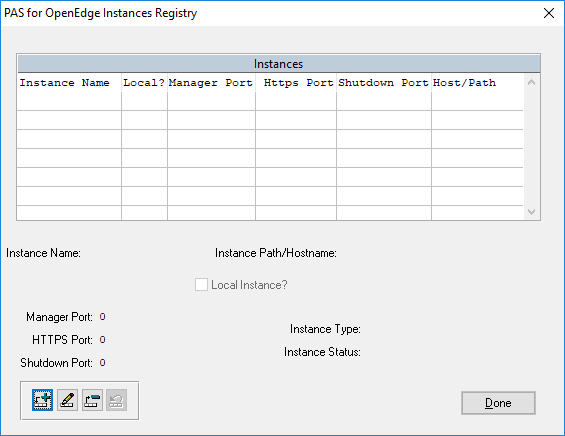
- Select the Add button
- Enter the below information:
- Instance name
- Instance Path/Hostname - Should be the hostname where the PAS instance is running
- Manager Port - The http port used in defining the instance. Once this is filled in, the https and shutdown ports are auto-filled with port numbers 1 and 2 greater than the http port
- Https port - Only if different than suggested value (not used for anything in this tool... yet)
- Shutdown port - Only if different that suggested value (not used for anything in this tool... yet)
- Click the Save button
- Click Done to go back to the main window
Interrogating an instance:
- Choose the instance from the Instance combo-box - This will automatically load agent information from that instance in the Agents browse
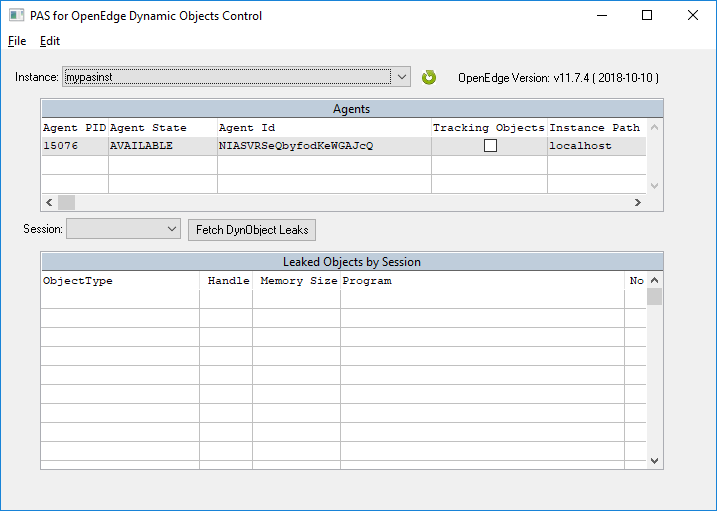
- To turn on Objects Tracking, select the Tracking Objects toggle for the agent you wish to interrogate
- Run code against the agent that you suspect has leaks
- Select a session, then select the "Fetch DynObject Leaks" button. If there were leaked objects on the Agent, they will be shown, along with where the leak came from in the application.