BrokerConnect
To configure logging for BrokerConnect:
- Make a backup of the %DLC%\properties\ubroker.properties file.
- Open %DLC%\properties\ubroker.properties.
- Go to the [Adapter.sonicMQ1] for OpenEdge 11.7 and [Adapter.genericMQ1] section for OpenEdge 12.
- Set brkrLoggingLevel to something other than 0.
- Set srvrLoggingLevel to something other than 0.
- Restart the the adapter for the changed to take effect.
brkrLoggingLevel and srvrLoggingLevel values:
# Specifies the amount of information to be written to the messenger log.
# Possible values: 0-4
# 0 - No log file written
# 1 - Error only
# 2 - Terse
# 3 - Verbose
# 4 - diagnostic
With OpenEdge 11.x, an alternative is to use the OpenEdge Explorer tool to configure the logging.
ClientConnect and ServerConnect
The logging for ClientConnect and ServerConnect (-SMQConnect) is not enabled by default.
To enable ClientConnect and ServerConnect log files:
- Make a backup of the %DLC%\properties\JavaTools.properties file.
- Open %DLC%\properties\JavaTools.properties.
- Go to the [Adapter.CC.cc1] section for ClientConnect or the [Adapter.SC.sc1] for ServerConnect.
- Set brkrLoggingLevel to something other than 0.
- Set srvrLoggingLevel to something other than 0.
- Restart the client or Appserver/WebSpeed broker for the cc.* log files to be generated.
brkrLoggingLevel and srvrLoggingLevel values:
# Specifies the amount of information to be written to the messenger log.
# Possible values: 0-4
# 0 - No log file written
# 1 - Error only
# 2 - Terse
# 3 - Verbose
# 4 - diagnostic
Example for contents of Adapter.CC.cc1 section of JavaTools.properties file which sets the logging level to 3, the server log file to E:\wrk\progress\V117/cc.server.log and the broker log file to E:\wrk\progress\V117/cc.broker.log on Windows:
[Adapter.CC.cc1]
brkrLogAppend=0
brkrLogEntries=1
brkrLogEntryTypes=
brkrLoggingLevel=3
brkrLogThreshold=0
brkrNumLogFiles=3
brokerLogFile=E:\wrk\progress\V117/cc.broker.log
description=SMQ-ClientConnect Adapter
infoVersion=9010
initialAdptrThreads=5
maxAdptrThreads=20
maxClientInstance=10
minAdptrThreads=2
srvrLogAppend=0
srvrLogEntryTypes=
srvrLogFile=E:\wrk\progress\V117/cc.server.log
srvrLoggingLevel=3
srvrLogThreshold=0
srvrNumLogFiles=3
srvrStartupParam=
workDir=E:\wrk\progress\V102A
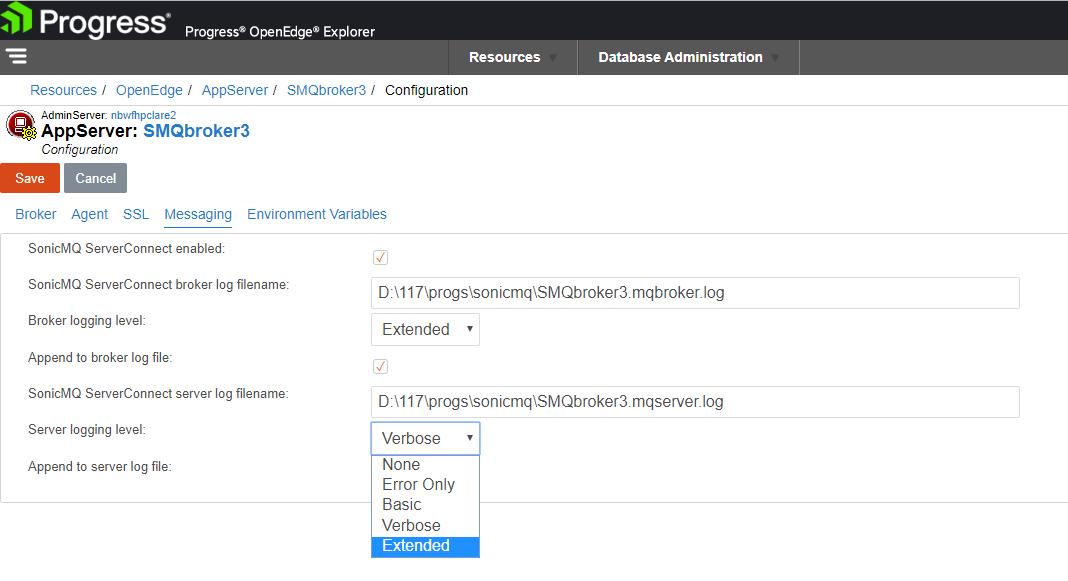
For ServerConnect logging, with OpenEdge 11.x an alternative is to set the logging using the OpenEdge Explorer tool. Select the classic AppServer broker and then the 'Configuration' option. The logging can then be modified and maintained on the 'Messaging' Tab: