How to add additional product licenses to an existing Progress installation:
Since Progress 9.x it is possible to add additional products to an existing Progress installation. Simply re-run the installation program (setup.exe for Windows and proinst for UNIX) from the installation media of the same OpenEdge Major Minor 32/64-bit and chipset version and Operating System as the current install. Since OpenEdge 11.7, the 11.7.2 Service Pack can be used instead to add additional licenses.
If the previous install was from a Progress ESD site download or from files copied from the Progress CD, then run the setup.exe/proinst from the extracted files in that directory, as long as that directory is not a child of the current installation (DLC).
If the install media for the existing installation needs to be downloaded again from the ESD site, download it to a temporary directory that is not a child of the current install directory or any of its subdirectories. Once the file is downloaded, extract the files and run the setup.exe/proinst executable with Local Admin or root permissions from within that temporary directory (which is not a directory under the current Progress install directory). The same holds true if copying the files from a CD to a temporary directory on disk.
Never use the "proinst/setup.exe" executable's that are located in the current installation directory (DLC) to add new products to an existing install, the install executable from the installation media must be used otherwise it will fail with existing installed executables that are running, even when the OpenEdge environment has been shutdown. For example refer to Article:
Similarly, the Product Update "proupdt / setup.exe -u" utility cannot be used to install new product licenses to an existing install. This will fail with error:
INSTALLATION ERROR (133): Product not installed. Unable to update product.
Error in serial or control numbers. Product not installed. Unable to update product list.
For further clarification on when PROUPDT needs to be used, refer to Article:
Prior to Adding a New Product Licenses to an existing install:
A. Backup the Configuration properties files:
As a precaution prior to changing the current installation, if making use of the OpenEdge 10.1A or later AdminServer framework, copy the <install directory>\properties directory to a temporary location, otherwise in previous versions find these *.property files and back them up. These files are used within the AdminServer framework to hold configurations. For example:
-
conmgr.properties file holds the configuration for databases and
-
ubroker.properties file holds the various ubroker configurations, i.e. AppServer, WebSpeed etc.
Since OpenEdge 11.7, a new feature: configutil was introduced to manage properties files. For further information about the configutil utility and its options, refer to:
OpenEdge Getting Started: Installation and Configuration, "Appendix C: Command and Utility Reference > Managing installation configurations
B. Shutdown the current OpenEdge Environment
As with any Progress OpenEdge installation, all Progress OpenEdge processes must be shutdown prior to installing even when adding additional product licenses to an existing installation:
-
On Windows, the installation program will search memory for running processes and if any Progress OpenEdge processes are found in memory the program will not continue.
-
On UNIX, this check will not occur and must be verified manually with 'ps -ef | grep" commands for example if unsure.
To add additional OpenEdge Product Licenses to an existing Progress installation:
Run the OpenEdge install using the install executable in the installation media of the same OpenEdge Major Minor 32/64-bit and chipset version and Operating System as the current install. The install media can be downloaded from the Progress ESD if it is no longer available:
Note for OpenEdge 12.8:
Since OpenEdge 12.8.4 up to OpenEdge 12.8.8, to add a new product run the setup from the OpenEdge 12.8.0 installation media. After the new products have been added to the existing OpenEdge installation, the OpenEdge 12.8.0 version of those products will be present in the OpenEdge installation directory. To update those products to the required version, run the setup from an OpenEdge Incremental Update (e.g. OpenEdge 12.8.8).
Starting with OpenEdge 12.8.9, Update releases are delivered as both incremental and complete installations. This means that a previous version of OpenEdge 12.8 does not need to be installed before running the OpenEdge 12.8.9 installer.
Note for OpenEdge 12.2:
Since OpenEdge 12.2.17 up to OpenEdge 12.2.18, to add a new product run the setup from the OpenEdge 12.2.0 installation media. After the new products have been added to the existing OpenEdge installation, the OpenEdge 12.2.0 version of those products will be present in the OpenEdge installation directory. To update those products to the required version, run the setup from an OpenEdge Incremental Update (e.g. OpenEdge 12.2.18).
Starting with OpenEdge 12.2.19, Update releases are delivered as both incremental and complete installations. This means that a previous version of OpenEdge 12.2 does not need to be installed before running the OpenEdge 12.2.19 installer.
General steps on WINDOWS
1. Start the setup.exe with the Local Administrator account.
2. A Warning dialog box appears when the installation process detects the existing version of Progress, notifying the user installing Progress OpenEdge of the existing version's location:
The installation has detected that there exists a previous installation of PROGRESS in the following directory:
C:\installation-path
The installation can only install additional products(s) to the above directory.
Would you like to continue?
3. Choose Yes to continue with the installation. The Welcome Dialog box appears.
4. Choose Next to continue. The Serial & Control Numbers dialog box appears.
Enter the Serial & Control Numbers for the additional product license and choose Accept for each product that needs to be added to the current installation. Since OpenEdge 10.2B an easier method is to provide this information in a file. For further information refer to Article:
5. Choose Next to continue. When a WebSpeed product is being installed, the Before You Start dialog box appears.
-
Review the information and choose Next.
-
The Choose Destination And Working Path Directories dialog box appears.
-
The install program deactivates (grays out) the Choose Destination And Working Path Directories dialog box modifier functionality and adds the new Progress product licenses to these previously configured installation directories automatically.
6. Accept the current directories and continue with the installation. The install adds the new Progress product licenses to the install directories and updates tailoring. Once the installation completes the License Configuration file, progress.cfg will be updated with the new licenses added.
General steps on UNIX:
1. Run proinst with the root account.
2. When asked if you want to update an existing installation, select NO.
3. When the Welcome dialog box appears, select the RETURN key to continue.
4. Once the Serial & Control Numbers have been entered, press CTRL-E.
The Done Configuration Data Confirmation dialog box appears.
5. Select N if more product licenses need to be added or select Y to continue.
The Type Device and Destination dialog box appears.
6. Choose Select the Destination Pathname, and type the full path of the current install directory (e.g. full path to $DLC)
7. Press RETURN. The Destination Pathname Exists dialog box appears:
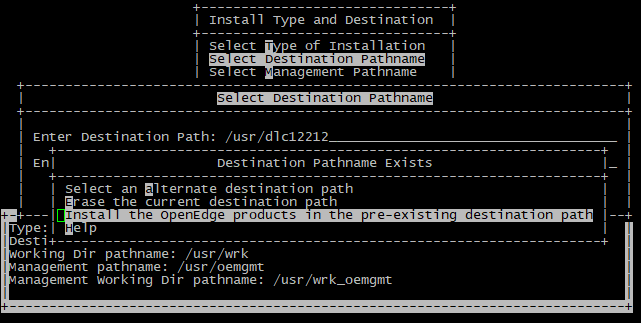
8. Choose: Install the Progress products in the pre-existing destination path and press RETURN to continue with the installation.
9. Choose Select the Management Pathname, and type the full path of the current OE Management install directory.
10. Continue with the installation.
The install adds the new Progress product licenses to the install directories directories and updates tailoring. Once the installation completes the License Configuration file, progress.cfg will be updated with the new licenses added.
Post Adding New Product Licenses to an existing install:
A. If a Service Pack was previously installed
Prior to the OpenEdge 11.7.1 Service Pack, once a new Progress/OpenEdge product is added to the existing installation, the Progress/OpenEdge Service Pack needs to be reinstalled. This is required because a newly installed product from the install media can overwrite files that a later Service Pack updated and prior to 11.7.1, Service Packs cannot be used to add product licenses to existing installs. For further clarification refer to Article:
B. If a Hotfix was previously applied
The Hotfix will need to be re-applied after adding new product licenses to an existing installation. OpenEdge Hotfixes to date are not applied through the install routine.


