Using JConsole to access the JMX interfaceJConsole is part of the Java JDK installed with OpenEdge, and can be found in your Java installation directory (e.g.
%DLC%\jdk\bin). It can connect to a Java runtime locally or remotely.
Note: The JMX interface exposes everything in the Tomcat's Java process, including generic Java APIs. PASOE specific extensions are found on the MBeans tab, under the PASOE node in the tree view.
To use the JMX interface for a PASOE instance on the same systemNo additional configuration is required if PASOE and JConsole are started with the same OS user account. All that's needed is to identify the PID of the PAS instance after it's started. The PID can be identified in OE Explorer / OE Management or by running the "
tcman plist -f" or "
pasman plist -f -I <PASOE instance>" command (use the PID which is not prefixed with a + sign).
When you start JConsole, it will list the Java processes running on the local machine. The PASOE instance will show up as "
org.apache.catalina.startup.Bootstrap start" if it has been started by the same OS user account that started JConsole. If multiple instances are running, use the PID to identify the correct one.
Note: If the PASOE instance is being started with a different OS user account (e.g. using OE Management Console or Developer Studio), then use one of the following options:
- Run JConsole from the command-line with an administrator / root account and specify the PID of the PASOE instance (e.g. jconsole.exe <PID>). On Windows, you have to run the command prompt console window (e.g. cmd.exe) with the "Run as administrator" option for this to work.
- Configure the PASOE instance for remote JMX access as detailed in the next section.
To use the JMX interface for a PASOE instance on another systemTo enable a PASOE instance for remote JMX access, additional steps are required.
OpenEdge 12.6 and laterRefer to the following documentation:
https://docs.progress.com/bundle/pas-for-openedge-management/page/JConsole-and-JMX.html
https://docs.progress.com/bundle/pas-for-openedge-management/page/Run-JConsole-locally.html
https://docs.progress.com/bundle/pas-for-openedge-management/page/Run-JConsole-remotely.html
OpenEdge 11.7, 12.2 to 12.5
- Add the required JVM parameters to enable remote JMX access:
- Open the <PASOE instance>\conf\appserver.properties file.
- Locate the section that starts with following line: # Optional JMX access used by the core catalina engine
- At the bottom of that section, add the following properties:
com.sun.management.jmxremote.port=<port>
com.sun.management.jmxremote.rmi.port=<port>
For example:
# Optional JMX access used by the core catalina engine
com.sun.management.jmxremote.password.file=${CATALINA_BASE}/conf/jmxremote.password
com.sun.management.jmxremote.access.file=${CATALINA_BASE}/conf/jmxremote.access
com.sun.management.jmxremote.ssl=false
com.sun.management.jmxremote.authenticate=true
com.sun.management.jmxremote.registry.ssl=false
com.sun.management.jmxremote.port=10001
com.sun.management.jmxremote.rmi.port=10002
Note: The JMXLifecycle feature has been removed in 11.7.20 and 12.2.8. While it could be used in previous 11.7 and 12.2 releases, the approach described above is recommended.
OpenEdge 11.5, 11.6, 12.0 and 12.1
- Turn on the "JMXLifecycle" feature:
- Run the "tcman.sh feature" command to turn JMXLifecyle ON.
Unix/Linux: <pas instance>/bin/tcman.sh feature JMXLifecycle=on
Windows: <pas instance>\bin\tcman.bat feature JMXLifecycle=on
This will turn on the JMX remote process and open ports for remote connection. Default ports are 10001 for the JMX/RMI registry and 10002 for the JMX/RMI server.
To change these ports open the <pas instance>\conf\catalina.properties and look for the following properties:
psc.as.jmxregistry.port
psc.as.jmxserver.port
All OpenEdge releases
- Specify the DNS name for the hostname property (otherwise it uses localhost):
- Open the <pas instance>/conf/appserver.properties file.
- Locate the section that starts with following line: # Optional JMX access used by the core catalina engine
- At the bottom of that section, add the following property:
java.rmi.server.hostname=<the fully qualified domain name of the PAS system>
- Set username / password for remote JMX access:
- Open the <pas instance>/conf/jmxremote.password file.
- Change the username and password that will be needed to connect from a remote JConsole instance.
- The JVM requires limited access to the jmxremote.password file, so change the permissions on the jmxremote.password file:
Unix/Linux:
chmod 600
<pas instance>/conf/jmxremote.password
Windows: Under file properties -> Security tab, only allow access to the user account that will run the PASOE instance. Furthermore, that user should also be the owner of the file.
Since the requirements for Windows are more complex, an example is provided where the PASOE instance is being started by the AdminServer. In this example, the AdminServer service is being started by the Local System account. For example:

So in this case the SYSTEM account should be the owner of the jmxremote.password file and the SYSTEM account should also be the
only account with permissions to access the file. For example:
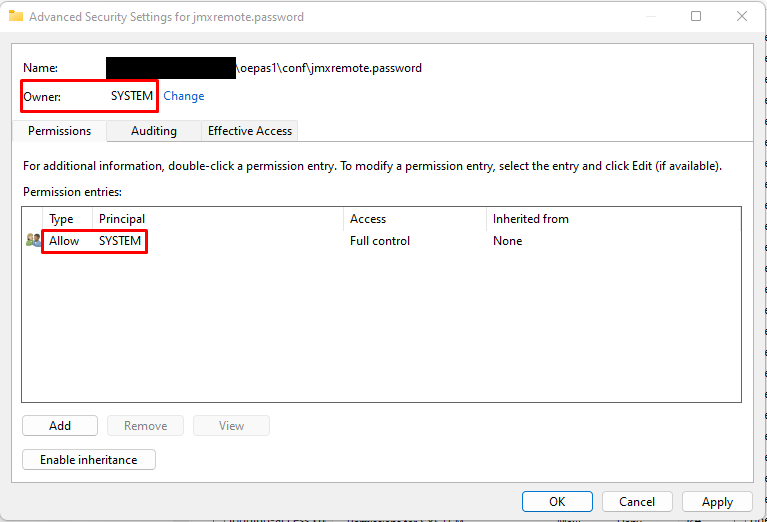
So all other accounts and groups that have access to the file should be removed. The permissions inheritance may need to be disabled to make this possible (lower left button would state "Disable inheritance").
Connecting from JConsoleJConsole can connect with
<hostname>:
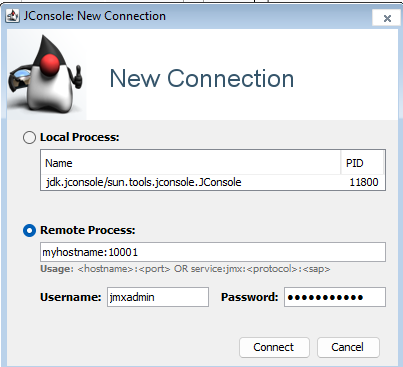
<JMX port>, with the username / password as configured in the section above. For example: