Salesforce

Form not visible in Visual Designer

« Go Back

Information

 
TitleForm not visible in Visual Designer
URL NameForm-not-visible-in-Visual-Designer
Article Number000187054
EnvironmentProduct: OpenEdge
Version: All supported versions
OS: Windows 10, Windows 11
Other: Progress Developer Studio for OpenEdge
Question/Problem Description
Form not visible in Visual Designer.
Blank design canvas in Visual Designer.
Form not visible in Visual Designer when using high DPI monitor.
Form not visible in Visual Designer after installing Windows 10 Creators update.
Form not visible in OpenEdge Visual Designer after installing Windows 10 Creators update.
Form not visible in Visual Designer after installing Windows 10 Creators update when using high DPI monitor.
Form not visible in Visual Designer when using Windows 10 when using high DPI resolution.

When opening a form in Progress Developer Studio for OpenEdge (PDSOE) Visual Designer, nothing appears on the design canvas. The white area where visible controls normally appear and the yellow area for non-visual controls are both visible, but no form or controls are visible in either area:

Blank design canvas
Steps to Reproduce
Clarifying Information
  • In some cases, Windows 10 Creators update has been applied.
  • Form can be opened in the ABL code editor.
  • Form appears correctly when code is executed.
  • No error message is displayed.
Error Message
Defect Number
Enhancement Number
Cause
This is expected behavior. This issue is with Eclipse and not the AVM. 
Resolution
  1. In the Windows 10 Start menu, locate the Progress program group and right-click the Developer Studio shortcut.
  2. Select Properties from the context menu.
  3. Open the Compatibility tab.
  4. Select the "Override high DPI scaling behavior" check box. In the "Scaling performed by:" drop-down list, keep the default setting of "Application" (NOTE: Depending on the Win 10 version this can change):
Developer Studio shortcut properties with correct DPI scaling settingUser-added image
  1. Click OK.
  2. Open PDS using the shortcut.
  3. Open a form in Visual Designer. It will now display properly.
NOTE:
From 12.1 onwards
PDSOE short-cut uses %DLC%\oeide\launchPDSOE.bat file instead of %DLC%\oeide\eclipse\eclipse.exe, so above steps needs to be performed on %DLC%\oeide\eclipse\eclipse.exe
 
Workaround
Notes
This problem may also be experienced by .Net UI frontend clients.
This problem may also be experienced by other frontends which make use of forms.

Depending on Windows Update settings, the Creators update may have been installed automatically. To check whether the Creators update has been installed:
  1. Open the Run dialog (Start > Windows System > Run or CTRL-R)
  2. Enter "winver"
  3. Click OK
  4. If Windows 10 Creators Update is installed, the displayed version will be 1703 (OS Build 15063.0) or greater:
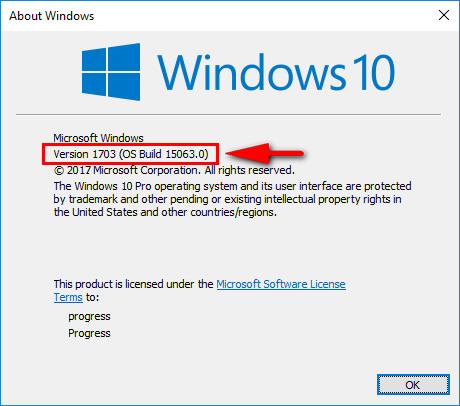
About Windows dialog (winver)

On some later versions of Windows 10, the Window for accessing the properties for PDS for OpenEdge (for example), is a little more difficult to find.
If when right clicking on the PDS for OpenEdge icon, the following options are the only options available (Pin to Start, more, Uninstall), follow the following instructions:

1) Click start
2) Scroll down to Progress
3) Right click Developer Studio
4) Click more and then Open file location
5) A windows explorer window should pop up
6) Right click on Developer studio icon in the Windows explorer view
7) Click properties
8) Click the compatibility tab
9) Click change high DPI settings button
10) Click the checkbox Override high DPI scaling behavior (enable it).
11) Under that there is a Scaling performed by :
12) Leave that at Application
13) Click OK
14) Click OK
15) Restart Developer Studio for OpenEdge. Visual designer should now work correctly.
Keyword Phrase
Last Modified Date12/13/2023 2:34 PM

Powered by

